How to Upscale AI-Generated Videos to 4K and Improve Visual Quality
Updated: Oct 30
The visual quality of most AI-created videos can be affected because the faces are blurred, lack detail, and the texture is soft, with incoherent frames. To upscale video to 4K, creators need AI enhancement that improves perceived detail, reduces noise, and preserves natural textures rather than simply increasing resolution. In this guide, we will discover how to apply HitPaw VikPea to fine-tune AI-generated video and get it ready for sharper, more regular 4K output.

Common AI-Generated Video Problems and How to Fix Them
Videos that have been generated with the help of AI can seem amazing at first sight, but it becomes clear that they have graphical weaknesses when viewed on a larger screen or in frame-by-frame mode. Knowing what the primary issue is prior to improvement will assist you in selecting the appropriate approach and not spending any time processing it.

Blurry Faces and Missing Details
Eyes, skin texture, hair, or clothing of the characters created by the AI can be blurred, or the patterns can be of low quality. Such defects could be connected with the deficiency of the generation model, low-resolution output, or motion-related defects. The definition of the face, restoration, and enhancement of the portrait with the help of AI can be applied to get realistic textures and emphasize the main points. However, this enhancement will not be able to reclaim the information that was not initially captured appropriately in the original video.
Low Resolution and Soft Image Quality
Videos shot in 720p or less may appear soft on 4K displays or a large TV. Conventional resizing just stretches out pixels in size, not necessarily increasing useful detail. AI upscaling examines visual data to create viable edges and textures, which can result in a more realistic image.
Noise, Compression Artifacts, and Distorted Textures
Artificial surface patterns, grain, blocky patches, ringing at the edges, and unnatural surface patterns can render AI-generated footage unnatural. These issues can be generated during generation, compression, or even repeated exporting.
Flickering and Inconsistent Details Between Frames
The AI-generated videos can have faces that change slightly, objects that deform, or flickering textures as the camera shifts. These problems are more about time inconsistency, as opposed to resolution. The upscaling of individual frames can not automatically fix the transition between successive frames. In case it flickers, consider using a workflow that allows temporal consistency or even specially dedicated video stabilization where necessary.
What Is AI Video Upscaling and Why Does 4K Matter?
AI video upscaling increases a video's resolution while attempting to improve its perceived detail. An ai video upscaler can be useful when an AI-generated clip looks impressive on a laptop but appears soft or lacking in detail on a larger screen. The final quality depends on the source footage and the enhancement process.
Traditional Video Upscaling vs. AI Video Upscaling
Traditional upscaling involves adding more pixels to enlarge an image by calculating the values of extra pixels. It is capable of scaling footage to a bigger screen, but is not dependable for recovering lost facial features or finer texture. AI upscaling is a different approach. It rebuilds credible details based on patterns identified through training information, enhancing edges and perceived clarity.
What Does 4K Resolution Actually Mean?
The standard 4K UHD implies 3840 x 2160 pixels (which is about 4 times the number of pixels of Full HD (1920 x 1080)). This offers additional space for fine detail on compatible displays. It can even be used to promote YouTube videos, promotional videos, and movie projects to be shown on big screens. Resolution per se does not, however, assure higher visual quality.
When Should You Upscale an AI-Generated Video to 4K?
Use 4K to make footage ready to work on large screens, publish in high resolution, or for an editing process that needs to have more detail in the output. It is also capable of assisting creators in developing a set of deliverables that are consistent with customers requiring 4K resolution. Inspect the source clip prior to deciding to upscale video to 4K. A not-so-dirty 1080p video might react better than one that has gross blur, distorted faces, or flickering. Should your original clip contain huge flaws, deal with those issues and enhance the resolution. Always check the preview of the outcome prior to exporting the final video.
Upscale AI-Generated Videos to 4K with HitPaw VikPea
Videos produced by AI might have blurry faces, mushy textures, and undesirable noise, which makes them less professional. HitPaw VikPea is an artificial intelligence video enhancer that assists creators in enhancing visual clarity, recovering details, and increasing the footage to a higher resolution. It provides various refinement options for certain video quality problems, which is why it can be a viable solution for YouTubers, marketers, and AI video producers. The most successful ones select the appropriate model and examine the footage prior to export.
Key Features
AI upscaling: Upscale video to 4K to increase publication to high resolution.
Enhancement of portraits: Enhance the visibility of the facial features and skin details.
Noise: Minimize noise and some compression artifacts.
Detail enhancement: Enhance the perceived sharpness and texture definition.
Video preview: Check out the improved footage prior to final export, where available.
How to Upscale AI-Generated Videos to 4K with HitPaw VikPea: Step-by-Step Guide
These five steps will allow you to upscale AI video to 4K and deal with many of its most common visual artifacts.
Step 1: Download VikPea and start using it
Go to the official site of HitPaw VikPea, download the software, and install it on your computer. Launch the app and find the video enhancement workspace.

Step 2: Select your video generated by AI
Click on the Video Enhancer and add your original clip. Test its resolution and observe apparent flaws, e.g., blurred faces, lack of texture, compression artifacts. By determining the key issue, you will be able to choose an appropriate improvement technique.

Step 3: Choose the appropriate AI model
Choose an improvement model, depending on your footage. A model that emphasizes faces can be used to enhance facial clarity, and a general enhancement model can be used to enhance soft details. The models and their names may depend on the version of the software.

Step 4: Set the resolution of the output.
Click on output settings, and choose 4K resolution, provided it is available in your version. A preview of a representative portion of the clip will be shown before processing the entire video. Closely examine eyes, hair, clothing, and moving objects to determine unnatural details or over-sharpening.
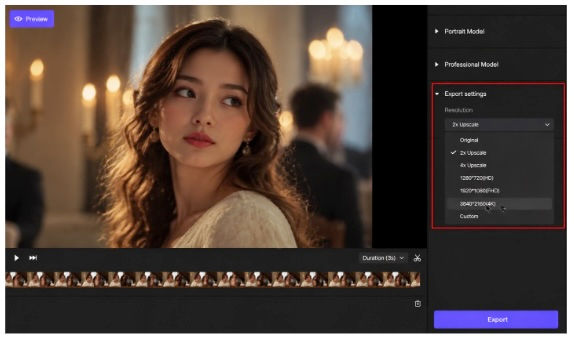
Step 5: Export and view the improved video.
Initiate the improvement process and export the completed clip with the help of the given settings. Test the file that has been exported by playing it at normal speed and viewing some frames.

How to Get Better Results When Enhancing AI Videos
More than making AI-generated footage have a higher resolution is necessary to improve it. The correct improvement options and a thorough inspection can be useful to maintain natural details and even movement.
Choose Enhancement Settings Based on the Main Problem
Defects vary and must be approached differently. The faces in blurry pictures can be improved with portrait enhancement, whereas the grainy pictures require noise reduction. The soft images can be more responsive to AI upscaling. Find out the most glaring flaw and then select your settings. Perform first on a short clip to determine whether or not the enhancement enhances quality without adding new artifacts.
Avoid Over-Sharpening and Artificial Details
Over-sharpening may cause bright halos, rough edges, and unnatural skin textures. The AI models can also produce realistic details that are not similar to the original scene. Compare the improved image with the original of equal size. Concentrate on naturalistic faces, hair, and clothing, but not sharpness. When the textures are too strong, weaken the strength of the enhancement.
Check Both Static Frames and Motion
Stop the video to examine the features of the faces, small details, and edges of objects. After that, play the whole clip at regular speed to ensure that there is no flickering, shifting faces, or uneven textures across the frames. Specific attention should be paid to moving objects and angles of the camera. Lastly, proofread the file that you have exported. A crisp freeze frame does not ensure smooth and continuous video quality.
FAQs About Upscaling AI Video to 4K
1. Can AI-Generated Videos Be Upscaled to 4K?
The videos created with AI can be converted into 4K with the help of AI enhancement software like HitPaw VikPea. The output will be determined by the input video, and certain flaws can remain.
2. How Do I Upscale an AI Video to 4K Without Losing Quality?
Select an AI upscaler that corrects the main flaws of your video, and make sure to start with the best original file possible. Preview the improved image and then export to verify artificial textures, flickering, and over-sharpening.
3. Can I Enhance a Video to 4K for Free?
Yes, there are a few free trial tools or free video enhancement processing options to enhance a video to 4K free. HitPaw VikPea is free to test, but verify its current export limitations before using it for an entirely free 4K workflow.
4. Does Upscaling a Video to 4K Make It Look Like Native 4K Footage?
It does not have to be the case since upscaling recreates credible details as opposed to restoring every detail that a native 4K camera has recorded. The ultimate look will be based on the source resolution, compression, motion, and enhancement quality.
5. Which AI Model Should I Use to Enhance an AI-Generated Video?
Select either a portrait model for blurry faces, a denoising model for grain, or a general restoration model for soft details and compression artifacts. HitPaw VikPea offers various enhancement models; thus, one should test the models and pick the one that brings the most natural effects.
Conclusion
Improving AI-generated videos to 4K produces better quality when resolution enhancement addresses specific problems in the footage, such as blurry faces, noise, or rough textures. Identify the main problem, choose the appropriate improvement method, preview the separate frames and motion, and finally, review the export file. HitPaw VikPea offers a convenient tool to polish AI-generated video and prepare it for 4K publishing; consider its capabilities to polish your next one.